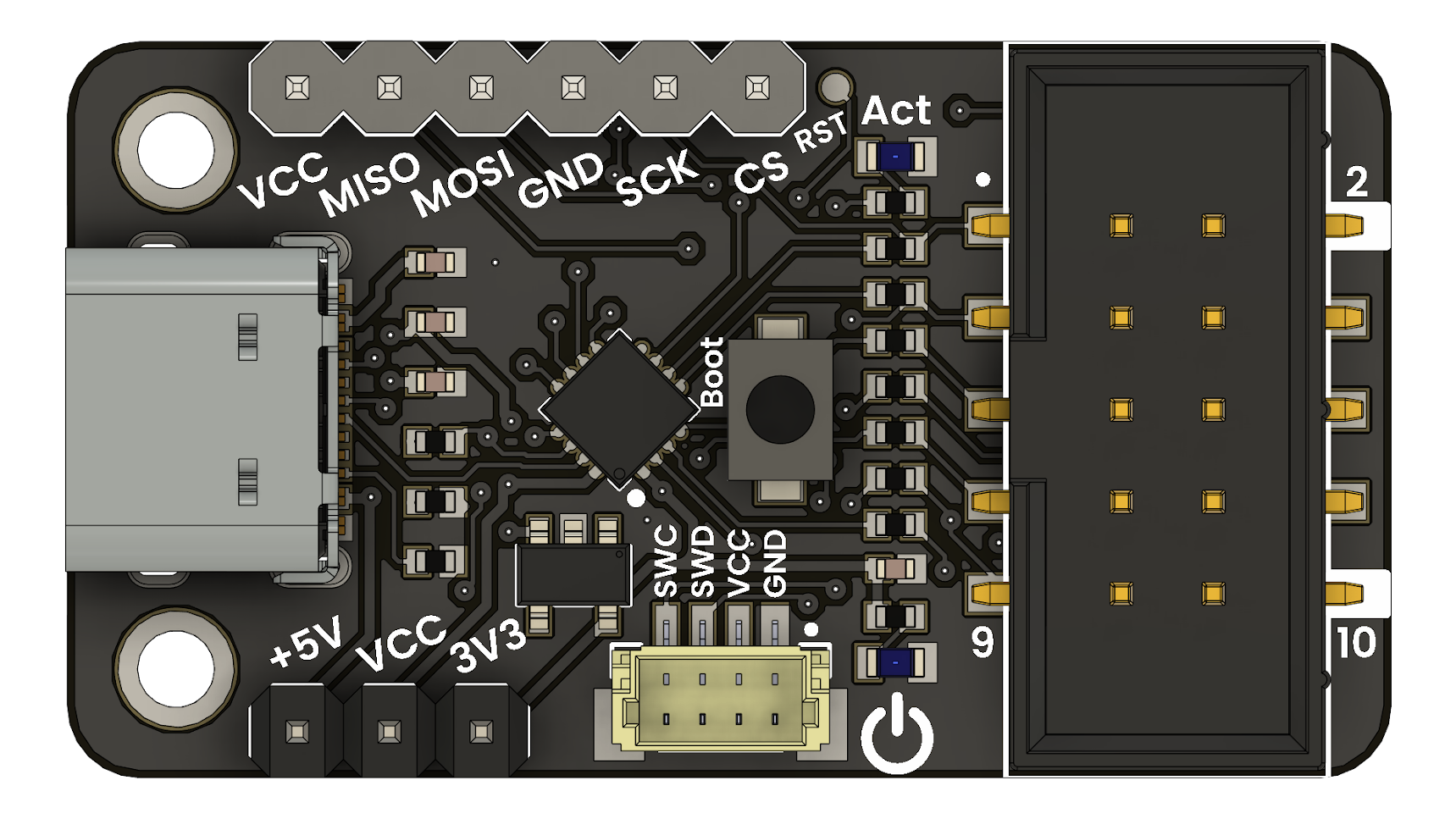
Optional Docker and spkg#
The UNIT CH55x SDK includes optional Docker-based tooling through spkg for
Makefile-based examples. Use PlatformIO first for new projects; Docker is kept
as a secondary workflow for isolated builds and legacy examples.
Use this page only when a project specifically needs the Docker/spkg
workflow.
Note
This is the only chapter that documents spkg usage. For new project
implementation, use PlatformIO Support for CH55x.
Requirements#
Common Requirements#
Docker Desktop or Docker Engine.
Git.
Bash shell.
Linux#
Python 3.
Permission to run Docker.
Superuser privileges may be required during Docker installation or when the current user is not part of the
dockergroup.
Windows#
Docker Desktop with WSL2 or Hyper-V backend enabled.
MinGW64, included with Git Bash, for the
makecommand.
Installation#
Clone the SDK repository:
git clone https://github.com/UNIT-Electronics-MX/unit_ch55x_sdk.git
cd unit_ch55x_sdk
On Linux, make the launcher executable:
chmod +x spkg/spkg
Optional global installation on Linux:
cd spkg
sudo ln -s "$(pwd)/spkg" /usr/local/bin/spkg
On Windows, run the launcher from Git Bash:
./spkg/spkg.bat --help
Build the Docker Image#
Start Docker Desktop or the Docker daemon before running the SDK commands.
./spkg/spkg compose
If spkg was installed globally:
spkg compose
./spkg/spkg.bat compose
Verify that Docker is running with:
docker ps
Compile a Project#
./spkg/spkg -p ./examples/Blink
With global installation:
spkg -p ./examples/Blink
./spkg/spkg.bat -p ./examples/Blink
Run Make Targets#
The command after the project path is forwarded to make inside the
container. Common targets are clean, all, and hex.
./spkg/spkg -p ./examples/Blink clean
./spkg/spkg -p ./examples/Blink all
./spkg/spkg -p ./examples/Blink hex
./spkg/spkg.bat -p ./examples/Blink clean
./spkg/spkg.bat -p ./examples/Blink all
./spkg/spkg.bat -p ./examples/Blink hex
Create a New Project#
The init command creates a new project directory.
./spkg/spkg init examples/project
./spkg/spkg.bat init examples/project
Output#
For Makefile-based projects, the compiled binary is generated at:
examples/Blink/build/main.bin
Other generated files, such as HEX output, are written under the same project
build/ directory according to the project Makefile.
Flash Tools#
Generated firmware can be flashed with one of the supported CH55x tools:
tools/chprog.py.
Configure Docker Without sudo on Linux#
Docker commands may require sudo until the current user is added to the
docker group.
Install Docker Engine#
Select one installation method.
sudo apt update
sudo apt install -y docker.io
sudo apt remove docker docker-engine docker.io containerd runc
sudo apt update
sudo apt install -y ca-certificates curl gnupg
sudo install -m 0755 -d /etc/apt/keyrings
curl -fsSL https://download.docker.com/linux/ubuntu/gpg | sudo gpg --dearmor -o /etc/apt/keyrings/docker.gpg
echo "deb [arch=$(dpkg --print-architecture) signed-by=/etc/apt/keyrings/docker.gpg] https://download.docker.com/linux/ubuntu $(lsb_release -cs) stable" | sudo tee /etc/apt/sources.list.d/docker.list > /dev/null
sudo apt update
sudo apt install -y docker-ce docker-ce-cli containerd.io docker-compose-plugin
Verify Docker Operation#
sudo systemctl start docker
sudo systemctl enable docker
docker version
Add the User to the docker Group#
sudo usermod -aG docker $USER
newgrp docker
Log out and back in if the group change is not applied in the current shell.
Validate Non-Privileged Docker Usage#
Run Docker without sudo:
docker ps
The command should return either an empty container list or the column headers.
Verify Docker Compose#
Check the modern Docker Compose plugin first:
docker compose version
Some systems also provide the classic command:
docker-compose version
If Docker Compose is missing, install the package for your distribution. On Ubuntu-based systems:
sudo apt install docker-compose-plugin
Optional Socket Permission Check#
Inspect the Docker socket:
ls -l /var/run/docker.sock
Expected group ownership:
srw-rw---- 1 root docker ...
If the group or permissions are wrong:
sudo chown root:docker /var/run/docker.sock
sudo chmod 660 /var/run/docker.sock
Troubleshooting#
If
spkg composefails, confirm Docker is running withdocker ps.If Linux requires
sudofor every Docker command, re-check thedockergroup membership and start a new login session.If Windows cannot run
spkg, use Git Bash and call./spkg/spkg.bat.If a build cannot find a Makefile target, verify that the path passed with
-ppoints to the project directory that contains the Makefile.