Desktop Environment#
The environment setup is the first step to start working with the Touch Dot S3 board. The following steps will guide you through the setup process.
Install the required software
Set up the development environment
Install the required libraries
Set up the board
Install the required software#
The following software is required to start working with the Touch Dot S3 board:
Git: Git is required to clone the Touch Dot S3 board repository.
Python 3.7 or later (Optional): Python is required to run the scripts and tools provided by the Touch Dot S3 board.
Visual Studio Code: Visual Studio Code is a code editor that is required to write and compile the code.
This section will guide you through the installation process of the required software.
Visual Studio Code#
Visual Studio Code is a code editor that is required to write and compile the code.
To install Visual Studio Code, follow the instructions below:
Download the Visual Studio Code installer from the
Run the installer and follow the instructions.
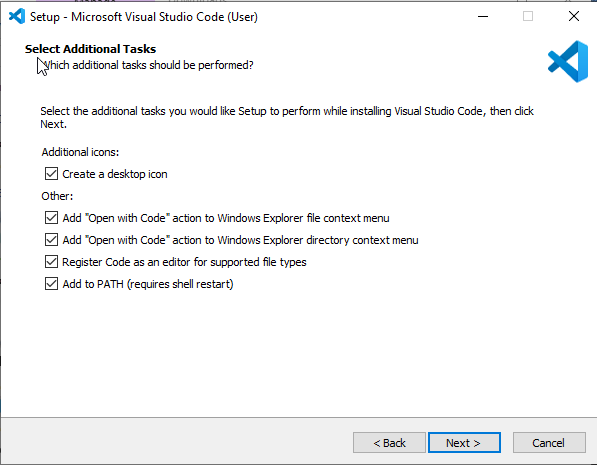
Fig. 5 Visual Studio Code installer#
Note
During the installation process, make sure to check the box that says “Open with Code”.
Open a terminal and run the following command to verify the installation:
code --version
Install extensions for Visual Studio Code:
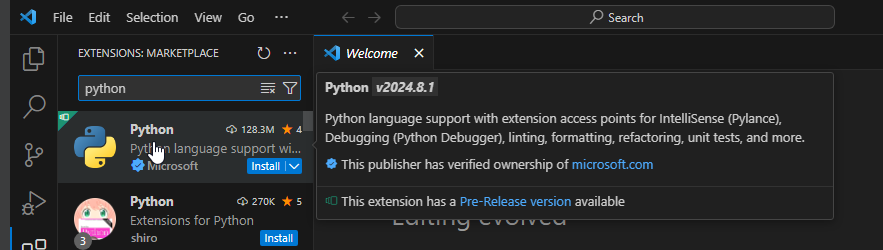
Fig. 6 Visual Studio Code extensions#
Arduino IDE Installation#
The Arduino IDE is a popular open-source platform for building and programming microcontroller-based projects. It provides a user-friendly interface and a wide range of libraries to simplify the development process.
To install the Arduino IDE, follow the instructions below:
Download the Arduino IDE installer from the
Run the installer and follow the instructions.
For additional guidance, refer to the
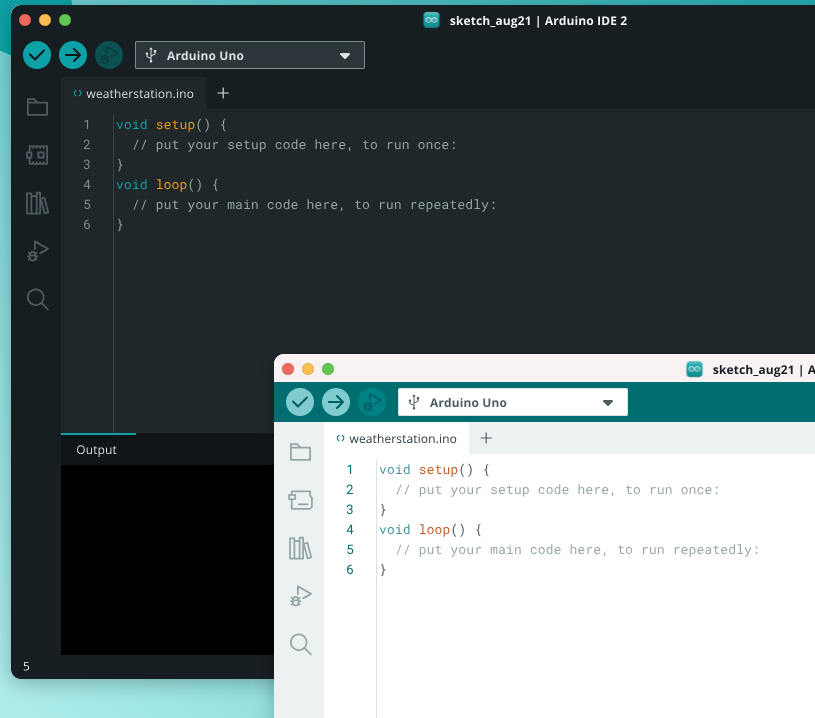
Fig. 7 Arduino IDE installation#
Thonny IDE Installation#
Thonny is a Python IDE designed for beginners. It provides a simple interface and built-in support for MicroPython, making it an excellent choice for programming the Touch Dot S3 board.
To install Thonny IDE, follow the instructions below:
Download the Thonny IDE installer from the
Run the installer and follow the instructions.
For MicroPython support documentation, visit the
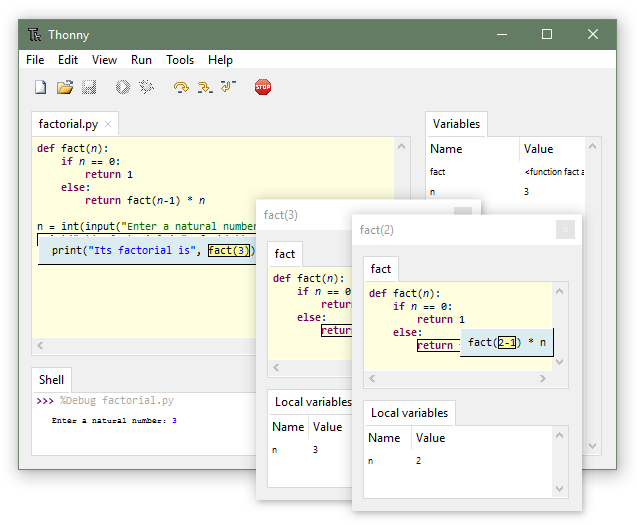
Fig. 8 Thonny IDE installation#
Git#
Git is a version control system that is required to clone the repositories in general. To install Git, follow the instructions below:
Download the Git installer from the
Run the installer and follow the instructions.
Open a terminal and run the following command to verify the installation:
git --version
If the installation was successful, you should see the Git version number.
Python 3.7 or later (Optional)#
Python is a programming language that is required to run the scripts and tools,
To install Python, follow the instructions below:
Download the Python installer from the:
Run the installer and follow the instructions.
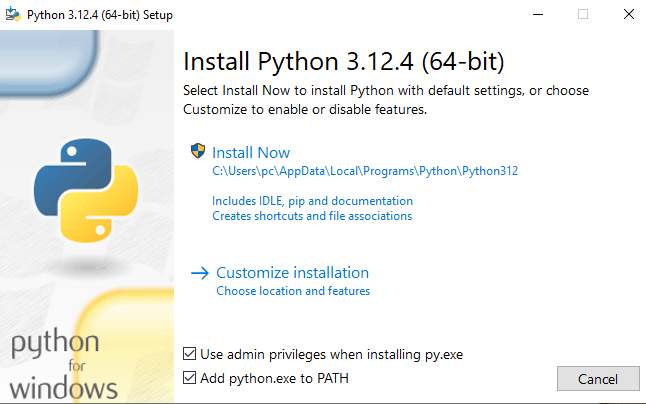
Fig. 9 Add python to PATH#
Attention
Make sure to check the box that says “Add Python to PATH” during the installation process.
Open a terminal and run the following command to verify the installation:
python --version
If the installation was successful, you should see the Python version number.